

Qolsys IQ Panel 4 Manual: A Comprehensive Guide
This manual details the Qolsys IQ Panel 4, covering setup, interface navigation, sensor management, smart home integration, and troubleshooting – all essential for optimal security․
The Qolsys IQ Panel 4 represents a significant leap in home security technology, offering a sleek design and advanced features․ This all-in-one system seamlessly integrates security, smart home control, and cellular connectivity․ It’s designed for easy installation and user-friendliness, making it ideal for both DIY enthusiasts and professionally monitored setups․
Key features include a vibrant touchscreen display, robust wireless protocols (Wi-Fi, cellular, and Z-Wave), and compatibility with a wide range of sensors․ The panel requires a dealer for initial provisioning via the IMEI number, ensuring proper activation with services like Alarm․com․
What’s Included in the Box
Upon opening your Qolsys IQ Panel 4 package, you’ll find the central control panel itself, featuring a touchscreen display and integrated cellular module․ The box contains a power adapter for initial setup, and mounting hardware for secure wall installation․
Additionally, you should locate the panel’s backplate, essential for wiring and mounting․ Documentation, including a quick start guide, is also included․ Note that sensors, smart home devices, and professional monitoring subscriptions are typically sold separately, requiring additional purchases based on your security needs․

Setting Up Your IQ Panel 4
Initial setup involves powering on the panel, activating the system, connecting to your Wi-Fi network, and linking it to your chosen alarm grid account․
Initial Power-Up and Activation
Upon first powering up your Qolsys IQ Panel 4, the system will guide you through a series of activation steps․ You’ll need the panel’s IMEI number, found on the box or backplate, for provisioning․
The installer code (default is 1111) is crucial for initial configuration․ Follow the on-screen prompts to select your language, date, and time․
Activation typically requires contacting your security dealer to link the panel to your Alarm․com account, ensuring professional monitoring services are correctly established․
Connecting to Wi-Fi
Establishing a Wi-Fi connection is vital for your Qolsys IQ Panel 4’s functionality, enabling remote access and updates․ From the home screen, navigate to Settings > Network > Wi-Fi․ The panel will scan for available networks․
Select your network and enter the password carefully․ A strong, stable Wi-Fi signal is recommended for reliable performance․
Once connected, the panel will display a confirmation message․ If connection fails, double-check your password and router settings, ensuring compatibility with the panel’s wireless standards․
Adding Your Alarm Grid Account
Linking your Qolsys IQ Panel 4 to Alarm Grid unlocks professional monitoring and advanced features․ You’ll need your panel’s IMEI number, found on the box or backplate, and your Alarm Grid installer code (default is 1111)․
Access your Alarm Grid account online and follow the instructions to add a new panel․ Enter the IMEI and installer code when prompted․
Successful linking enables remote control, alarm monitoring, and access to Alarm Grid’s support resources, enhancing your security system’s capabilities․
Understanding the IQ Panel 4 Interface
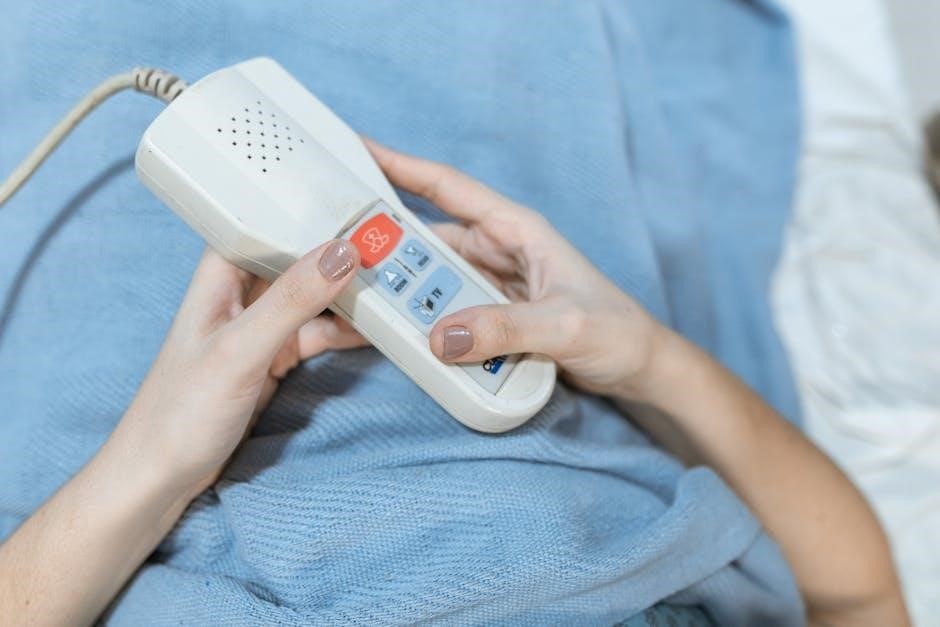
The IQ Panel 4 boasts an intuitive touchscreen interface, user profiles with varying access, and clear icon displays indicating system status and operational modes․
Navigating the Home Screen
The Home Screen serves as the central hub for your Qolsys IQ Panel 4․ It prominently displays the current system status – armed, disarmed, or alarming․ Quick access icons allow for immediate arming/disarming, bypassing sensors, and viewing system history․
Swiping left or right reveals additional panels for smart home control, camera feeds (if integrated), and settings․ The top bar consistently shows time, date, and signal strength․ Customization options allow users to rearrange icons for personalized convenience, streamlining daily interactions with the system․
Icon Meanings and System Status
Understanding the icons is crucial for quick assessment․ A green shield indicates a fully secured, armed system․ A grey shield signifies disarmed status․ Red alerts denote alarms or system faults requiring immediate attention․ Exclamation points highlight sensor issues – low battery or communication problems․
The system status bar displays Wi-Fi signal strength, cellular connectivity, and battery levels․ A flashing icon often indicates an ongoing process or pending notification․ Regularly checking these indicators ensures optimal system performance and proactive issue resolution․
User Profiles and Access Levels
The IQ Panel 4 supports multiple user profiles, each with customizable access levels․ The Master User possesses full control, including system settings and code management․ Individual users can be assigned limited access, restricting arming/disarming capabilities or sensor control․
This tiered system enhances security and accountability․ You can create unique PIN codes for each user, tracking system activity․ Properly configuring access levels prevents unauthorized changes and ensures responsible system operation within your household or business․

Arming and Disarming the System
Learn to effectively arm in Away, Stay, and Night modes, and understand disarming procedures, including utilizing panic buttons for emergencies and swift response․
Arming Modes: Away, Stay, Night
The Qolsys IQ Panel 4 offers three primary arming modes tailored to different scenarios․ Away mode activates full perimeter protection, ideal when leaving the premises unoccupied․ Stay mode secures the perimeter while allowing movement inside, perfect for nighttime or when someone remains at home․
Night mode is a customized Stay mode, often disabling specific sensors like interior motion detectors for comfortable sleep․ Each mode can be customized within the system settings to align with individual security preferences and lifestyle․ Proper selection ensures optimal protection and minimizes false alarms․
Disarming Procedures
Disarming the Qolsys IQ Panel 4 is straightforward, ensuring quick access in emergencies․ Enter your valid user code via the touchscreen keypad when prompted, or utilize a connected key fob for convenient disarming․ The system will audibly confirm successful disarming and display the current status on the home screen․
Ensure all entry points are secured after disarming to maintain system integrity․ Remote disarming is also possible through the Alarm Grid mobile app, offering control from anywhere with an internet connection․
Panic and Emergency Buttons
The Qolsys IQ Panel 4 features dedicated panic and emergency buttons for immediate assistance․ A prominent “Panic” button on the touchscreen instantly alerts the monitoring center, dispatching emergency services․ Additionally, medical and fire emergency buttons are available for specific situations․
These buttons bypass normal entry/exit delays, prioritizing rapid response․ Customization options allow assigning specific actions to each button․ Familiarize yourself with their locations and functions for swift activation during critical events․
Sensor Management
Effectively manage your security with the IQ Panel 4’s sensor capabilities․ This section covers adding, pairing, and troubleshooting various sensor types for comprehensive protection․
Adding and Pairing Sensors
To add sensors, begin by entering the panel’s sensor pairing mode through the settings menu․ Ensure the sensor is within range and powered on․ The IQ Panel 4 supports various wireless protocols, facilitating easy integration․ Follow the on-screen prompts to identify and name each sensor – door, window, or motion – for accurate monitoring․ Successful pairing is confirmed with a visual and audible notification․
Remember to test each sensor after pairing to verify proper functionality and communication with the panel․ Refer to the specific sensor’s manual for detailed instructions if needed․
Sensor Types: Door, Window, Motion
The Qolsys IQ Panel 4 seamlessly integrates with diverse sensor types․ Door and window sensors utilize magnetic contacts to detect openings, triggering alarms when breached․ Motion detectors employ passive infrared (PIR) technology, sensing movement within a defined area․ These sensors offer adjustable sensitivity levels to minimize false alarms caused by pets or environmental factors․
Proper placement is crucial; position door/window sensors on frames and motion detectors in areas with clear lines of sight for optimal performance and reliable security coverage․
Troubleshooting Sensor Issues
Addressing sensor problems is vital for system reliability․ Begin by checking battery levels – low batteries are a common cause of malfunctions․ Ensure sensors are within range of the panel and haven’t been physically obstructed․ If a sensor consistently reports “offline,” attempt re-pairing it with the IQ Panel 4․
For persistent issues, verify sensor compatibility and consult the Qolsys support resources․ Interference from other wireless devices can also cause problems; try relocating the panel or sensor;

Smart Home Integration
Expand your system’s capabilities by seamlessly connecting Z-Wave devices, smart locks, and lighting for enhanced control and automation through the IQ Panel 4․
Z-Wave Device Pairing
Initiating Z-Wave pairing on your Qolsys IQ Panel 4 is straightforward․ Navigate to the Smart Home menu, then select “Devices” and “Add Device․” Ensure your Z-Wave device is in inclusion mode – typically by pressing a button on the device itself․
The IQ Panel 4 will begin searching for the signal․ Once detected, it will appear on the screen․ Follow the on-screen prompts to complete the pairing process, assigning a name and room location for easy control․ Successful pairing unlocks remote operation via the app․
Connecting Smart Locks
Integrating smart locks with your Qolsys IQ Panel 4 enhances security and convenience․ Begin by ensuring your smart lock is compatible with Z-Wave or Alarm․com․ Initiate pairing through the Smart Home menu, selecting “Add Device” and following the on-screen instructions․
The IQ Panel will guide you through the lock’s specific pairing procedure․ Once connected, you can remotely lock/unlock doors and receive notifications regarding access․ Configure user codes for personalized entry, bolstering your home’s security․
Integrating with Smart Lighting
Seamlessly connect your Qolsys IQ Panel 4 with compatible smart lighting systems via Z-Wave technology․ Access the Smart Home section and choose “Add Device” to initiate the pairing process․ The panel will detect nearby Z-Wave lights, guiding you through setup․
Control lights remotely, create automated scenes triggered by alarm events, or schedule lighting for enhanced security and convenience․ Enjoy customized illumination and a more responsive smart home experience, all managed through your IQ Panel 4․

System Settings and Customization
Personalize your Qolsys IQ Panel 4 by adjusting the master code, sensor sensitivity, and notification preferences for a tailored security experience․
Changing the Master Code
The Master Code, typically used by the homeowner, grants full access to system settings․ To change it on your Qolsys IQ Panel 4, navigate to Settings > System > Master Code․ You’ll be prompted to enter your current code, then create a new, secure four to eight-digit code․
Remember to choose a code that isn’t easily guessable and avoid using personal information․ After entering the new code, confirm it to save the changes․ Regularly updating your Master Code enhances system security and prevents unauthorized access to critical settings․
Adjusting Sensor Sensitivity
Fine-tuning sensor sensitivity is crucial for minimizing false alarms and ensuring reliable detection․ Access sensor settings through Settings > Sensors․ Each sensor allows adjustments to its sensitivity level, often categorized as Low, Medium, or High․
Lower sensitivity reduces the likelihood of triggering from minor disturbances, while higher sensitivity increases responsiveness․ Experiment to find the optimal setting for each sensor based on its location and environment․ Regularly review and adjust these settings as needed for consistent performance․
Notification Settings and Alerts
Customize how the IQ Panel 4 alerts you to events through Settings > Notifications․ Configure delivery methods – SMS text, email, or push notifications via the mobile app․ Specify which events trigger alerts, such as alarm triggers, sensor faults, or system status changes․
Adjust notification preferences for each user profile, ensuring relevant individuals receive timely updates․ Explore options for delayed notifications or customized message content for enhanced control and awareness of your security system’s activity․
Advanced Features
Explore camera integration, firmware updates for enhanced security, and convenient remote access via the mobile app for complete control of your Qolsys IQ Panel 4․
Camera Integration
The Qolsys IQ Panel 4 seamlessly integrates with compatible security cameras, providing live viewing and recorded footage directly on the panel’s touchscreen․ This feature enhances visual verification of alarms, allowing users to quickly assess situations․ Supported cameras often include those utilizing Alarm․com’s video services․
Integration involves adding the camera through the Alarm․com platform, linking it to the IQ Panel 4․ Users can then view camera feeds during arming/disarming, or when an alarm event occurs․ Proper network connectivity is crucial for reliable camera streaming and recording․ Refer to the camera’s documentation for specific integration steps․
Firmware Updates
Maintaining up-to-date firmware is crucial for optimal Qolsys IQ Panel 4 performance and security․ Updates deliver bug fixes, new features, and enhanced protection against potential vulnerabilities․ The panel automatically checks for updates when connected to Wi-Fi, typically overnight․
Users can also manually check for updates within the system settings․ During the update process, do not interrupt power to the panel․ A stable power supply is essential to prevent corruption․ The panel will reboot automatically upon completion, restoring full functionality with the latest improvements․
Remote Access via Mobile App
The Qolsys IQ Panel 4 offers convenient remote control and monitoring through a dedicated mobile app․ Available for iOS and Android devices, the app allows users to arm and disarm the system, view sensor status, and receive real-time notifications․
Remote access requires an active Alarm Grid account and a stable internet connection․ Users can manage multiple panels from a single app account, providing centralized control․ The app also facilitates camera viewing and smart home device management, enhancing overall system accessibility․

Troubleshooting Common Issues
This section addresses frequent problems like low batteries, communication errors, and panel unresponsiveness, offering solutions to restore optimal system functionality and security․
Low Battery Warnings
The Qolsys IQ Panel 4 provides timely low battery alerts for both the panel itself and all connected wireless sensors․ These warnings appear on the panel’s screen, often accompanied by audible notifications, indicating a sensor or the panel’s backup battery is nearing depletion․
Prompt battery replacement is crucial to maintain continuous security․ Ignoring these warnings can lead to sensor failure or system downtime during power outages․ Replace batteries with the type specified for each device, and immediately test the sensor after replacement to confirm proper functionality․
Regular battery checks are recommended as a preventative measure․
Communication Errors
The Qolsys IQ Panel 4 relies on a stable connection to communicate with the monitoring center and your mobile app․ Communication errors can manifest as “No Cellular,” “Wi-Fi Offline,” or similar messages on the panel’s display․ These indicate a disruption in the system’s ability to transmit alarm signals․
Troubleshooting steps include verifying your internet connection, checking the cellular signal strength, and ensuring the panel is within range of the cellular network․ Contact your alarm provider if issues persist, as they may need to remotely diagnose or reset the connection․
Regularly test communication to ensure functionality․
Panel Freezing or Unresponsive
Occasionally, the Qolsys IQ Panel 4 may become unresponsive or appear frozen, displaying a blank screen or failing to react to touch inputs․ This can occur due to software glitches or temporary system overloads․ A soft reset is often the first troubleshooting step․
To perform a soft reset, locate the power button (typically on the side or back) and briefly press and release it․ This restarts the panel without erasing settings․ If the issue persists, contact your alarm provider for assistance, as a more in-depth reset might be required․
Avoid prolonged power outages․
Technical Specifications
The Qolsys IQ Panel 4 boasts advanced wireless protocols, specific power needs, and defined physical dimensions – crucial details for professional installation and system compatibility․
Power Requirements
The Qolsys IQ Panel 4 operates primarily on a 16V DC power supply, typically provided through a UL-listed transformer․ A crucial backup is the internal rechargeable battery, ensuring continued operation during power outages․ This battery requires periodic charging, automatically managed when the panel is connected to AC power․
It’s vital to use the specified power adapter to avoid damaging the system․ The panel also supports a wired connection to a dedicated power supply for enhanced reliability․ Proper power management is key to maintaining a consistently secure and functional alarm system․
Wireless Communication Protocols
The Qolsys IQ Panel 4 utilizes a robust suite of wireless technologies for comprehensive connectivity․ Key protocols include Wi-Fi (802․11 b/g/n) for network communication, cellular LTE (4G/5G) for alarm signal transmission, and Z-Wave Plus for smart home device integration․
Additionally, it supports S2 encryption for enhanced security within the Z-Wave network․ These diverse protocols ensure reliable communication with sensors, the monitoring center, and your smartphone, providing a secure and connected smart home experience․
Dimensions and Weight
The Qolsys IQ Panel 4 boasts a sleek and modern design with specific physical characteristics crucial for installation planning․ Its dimensions are approximately 8․0 inches (width) x 6․0 inches (height) x 1․9 inches (depth)․
The panel’s weight is around 1․4 pounds (0․63 kg), making it relatively lightweight for wall mounting․ These compact dimensions and manageable weight contribute to a discreet and aesthetically pleasing security system integration within any home environment․

Safety Information and Precautions
Always handle batteries with care, follow proper installation guidelines, and keep emergency contact information readily available for a secure system operation․
Battery Handling
Proper battery handling is crucial for safety and system performance․ Use only manufacturer-approved batteries to avoid damage or malfunction․ Never mix old and new batteries, or different battery types․ Dispose of used batteries responsibly, following local regulations for recycling or hazardous waste disposal․
Avoid short-circuiting batteries by keeping them away from metal objects․ If battery leakage occurs, avoid contact with skin and eyes; rinse thoroughly with water․ Regularly inspect batteries for corrosion or damage, replacing them promptly when needed to ensure continuous security system operation․
Proper Installation Guidelines
Careful installation ensures optimal performance and reliability․ Mount the IQ Panel 4 securely to a wall, avoiding direct sunlight or extreme temperatures․ Ensure adequate ventilation around the panel․ Route wiring neatly and securely, avoiding pinch points or damage․
Verify sensor placement for optimal coverage, following manufacturer recommendations․ Test all sensors after installation to confirm proper communication with the panel․ Consult a qualified professional if you are unsure about any aspect of the installation process, prioritizing safety and system functionality․
Emergency Contact Information
Pre-programmed emergency contacts are crucial for rapid response․ Access the system settings to input phone numbers for police, fire, and medical services․ Designate primary and secondary contacts for each emergency type, ensuring availability․ Regularly review and update this information to maintain accuracy․
Consider adding contacts for neighbors or family members who can quickly respond to an alarm event․ Clearly communicate alarm procedures and contact information to all designated individuals, fostering a coordinated response plan for enhanced safety․